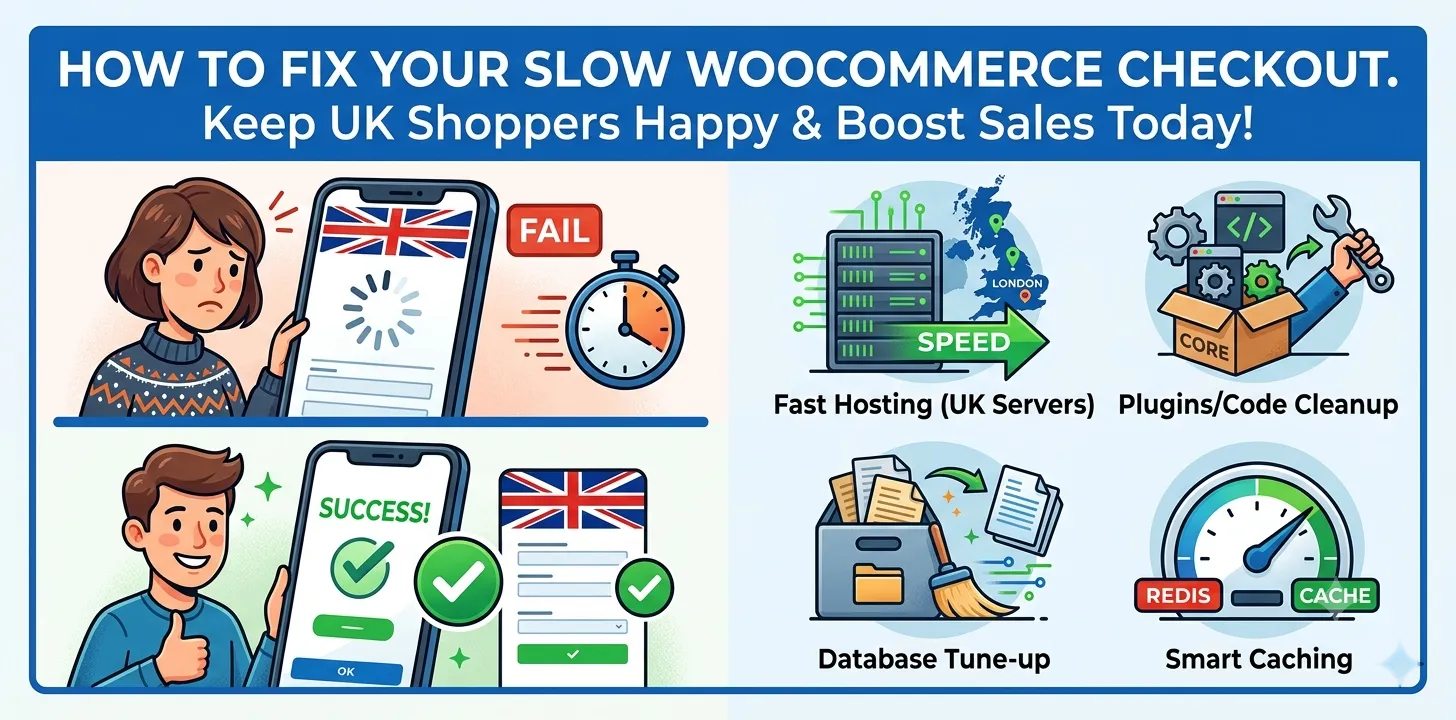

Running an online shop in the UK is hard work. You spend time and money to get people to your website. But then, those shoppers add items to their carts and hit a wall. Your checkout page takes forever to load. When a checkout is slow, buyers get annoyed. Many of them close the tab and buy from somewhere else instead. This means you lose sales and money every single day.
The good news is that you can fix this problem today. This guide will show you simple ways to speed up your WooCommerce store checkout. You will learn why your site is slow and how to make it fast again. By following these easy steps, you will keep your customers happy. A fast checkout means more finished orders, higher profits, and a better business for you. Let us get started and fix your store now.
How to fix woocommerce store slow checkout
A slow checkout costs you real money. Here are the best ways to fix your site, make payment pages fast, and keep your UK customers happy every day.
Use good UK web hosting
Your web host is the engine of your store. If your engine is weak, your checkout will be slow. Many shop owners start with cheap shared hosting. On shared hosting, your site shares space and computer power with hundreds of other websites. When those other sites get busy, your shop slows down. For a fast checkout, you need a powerful web host with servers located physically in the UK. When your server is close to your UK buyers, data travels a shorter distance. This makes every click much faster.
Last year, I helped a small London shop that sold handmade shoes. Their checkout took six seconds to load on cheap hosting. We moved their site to a managed WordPress host with a server in London. Without changing anything else, the checkout time dropped to under two seconds. Their sales went up by twenty percent in the very first month.
Look for hosting built just for WordPress and WooCommerce. These hosts use fast memory tools like Redis and Object Cache. They also give your store its own space so other sites cannot slow you down. If you want to learn more about setting up your server, check out our related guide on choosing the best UK WordPress hosting.
- Pick a host with UK data centres.
- Avoid cheap shared hosting plans.
- Use managed WooCommerce hosting for better power.
Stop plugin clutter and remove heavy code
Plugins give your store great features, but too many plugins will weigh your site down. Every time a customer goes to checkout, your site runs code from every active plugin. If you have thirty or forty plugins running, your site has to do too much work at once. Some plugins run heavy scripts on pages where they are not even needed. For example, a social media feed plugin might run its code during checkout, even though no one is looking at social posts while trying to pay.
You must test your plugins to find the slow ones. Turn off plugins one by one and test your checkout speed after each one. You can use free web tools to see which code files take the longest to load. Delete any plugin that you do not truly need. Also, make sure all your remaining plugins and your main WordPress theme stay fully updated. Old code runs slower and can cause errors that delay the payment page.
- Keep your total plugin count as low as possible.
- Delete unused or old plugins completely.
- Turn off heavy scripts on payment pages.
Tune up your database and cart session data
Your WordPress site stores every order, product, and customer comment in a database. Over time, this database gets full of trash. It holds old draft posts, deleted orders, and temporary session data from past visitors. Every time a new buyer adds an item to their cart, WooCommerce reads and writes to this database. If the database is messy and full of junk, those reads and writes take way too long.
I worked with a store that had over fifty thousand old cart sessions saved in their database. The site was trying to search through all those old records every time a buyer clicked to pay. We ran a clean-up tool to clear out that useless data. The database shrank by eighty percent, and the checkout instantly felt twice as fast to customers.
You should clean your database on a regular schedule. Clear out old transients, expired user sessions, and post revisions. You can use simple WordPress optimization tools to automate this task every week. For a full walkthrough on safety steps before doing this, read our related guide on backing up your WordPress database.
- Clear out expired cart sessions regularly.
- Delete spam comments and old post drafts.
- Optimize database tables to keep them lean.
Set up smart caching for WooCommerce pages
Caching makes websites fast by saving a copy of your pages as simple files. However, WooCommerce pages are tricky. You can cache your homepage, blog posts, and main shop pages easily. But you must never cache the cart page, the checkout page, or the customer account pages. If you cache those pages, one buyer might see another buyer’s private order details or basket items.
The key is to use smart caching. Tell your caching plugin or host to exclude the checkout URL from cache rules. But at the same time, make sure your server is using Object Caching. Object caching remembers the answers to frequent database questions. When a user enters their shipping info, object caching delivers the tax rates and shipping costs without asking the database every single time. This keeps private data safe while making the payment page fly.
- Never cache the cart or checkout pages directly.
- Exclude personal account pages from static cache rules.
- Enable Redis or Memcached for database caching.
Frequently Asked Questions
Find quick, direct answers to the most common questions store owners ask about fixing slow WooCommerce payment pages and boosting overall site performance today.
Why is my WooCommerce checkout page so slow?
Your checkout is slow due to weak web hosting, database clutter, heavy plugins, or improper caching settings that force your server to work too hard on every click.
Does WooCommerce caching break the payment process?
Yes, caching the actual checkout page breaks it by showing outdated customer data. You must exclude cart and checkout pages from page caching while using object caching instead.
How fast should my online store checkout load?
Your WooCommerce checkout page should load in under two seconds. Any slower and UK shoppers will leave your site, abandon their carts, and buy from your rivals instead.
Conclusion
A slow checkout page is a quiet store killer. It frustrates your buyers, ruins your hard work, and steals your daily revenue. By using a fast UK host, clearing out heavy plugins, cleaning your database, and setting up proper cache rules, you can fix this problem for good. A speedy shop creates trust and makes buying painless for every visitor.
My final expert tip is to test your checkout page every single week. Put a real item in your cart, walk through the payment steps on your phone, and time how long it takes. Do not wait for a customer to complain before you fix a slowdown. Your clear next step right now is to test your checkout speed today, list your slow plugins, and start making these easy fixes step by step.