

Starting a website in the UK is very exciting. But many people hit a big wall right away. You put your site online, and then you sit back and wonder if anyone is looking at it. Are people reading your posts? Are they leaving fast? It feels like talking in a dark room where you cannot see your audience. This guide solves that exact problem.
By setting up Google Analytics 4 on your WordPress site, you turn on the lights. You will see who visits your pages, how they found you, and what they like best. You do not need to be a computer genius to set this up. We will walk through every step together in plain, simple English. By the end of this guide, you will know how to measure your success and make your site better every single day.
How to set up Google Analytics 4 on WordPress
Setting up Google Analytics 4 on your WordPress site is very easy when you break it down into small, step-by-step actions that anyone can follow.
Get your new tracking code from Google
First, you need to set up a free Google Analytics account. Go to the main Google Analytics website and sign in with your normal Google email. Click the button to start setup and type in your website name. Choose your currency as British Pounds so your numbers make sense for your UK business. Next, Google will ask you to set up a Data Stream. Select the Web option and enter your full WordPress website address.
Once you finish this step, Google gives you a special code. This is called a Measurement ID. It always starts with the letters G followed by a set of numbers and letters. Keep this page open in your browser tab because you will need to copy this code in just a second.
When I helped a small bakery owner in Manchester set up her site last year, she got stuck here because she could not find her code again. I showed her that you can always find it under your Data Stream settings inside your account.
- Sign in to your Google account.
- Type in your site name and select British Pounds.
- Choose Web and enter your site address.
- Copy your new Measurement ID code.
Install a plugin on your WordPress site
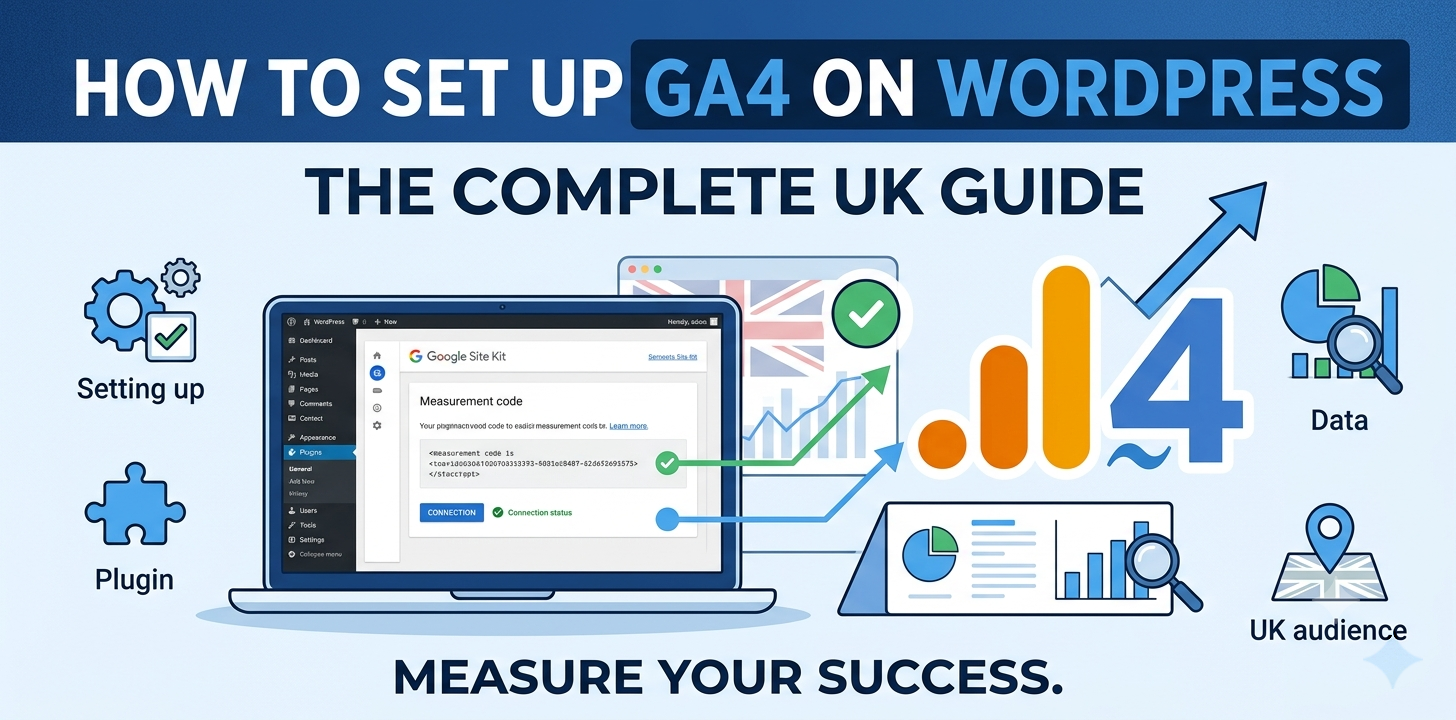
Now open a new tab and log in to your WordPress dashboard. Look at the left side of your screen and click on Plugins, then click Add New. A search bar will appear on the top right. Type in Site Kit by Google. This is the official plugin made by Google, and it is totally free to use. Click the button that says Install Now, and then click Activate.
Using this plugin is the safest way to connect your site because you do not have to edit any dangerous code yourself. If you mess up your code files, your whole site can stop working.
A few months ago, a client tried to paste code straight into his theme files. He made one small typo, and his whole screen went white. Using a plugin stops that bad thing from happening.
If you want to read more about keeping your site safe, check out our [WordPress Security Guide].
- Go to Plugins and click Add New.
- Search for Site Kit by Google.
- Click Install Now and then Activate.
- Avoid adding code directly to your theme files.
Connect Google Site Kit to your account
After you activate the plugin, you will see a big banner at the top of your screen. Click the button that says Start Setup. The plugin will ask you to sign in with the exact same Google account you used earlier. Click the blue buttons to give Google permission to link with your WordPress site.
The plugin will double-check that you own the site. It does this automatically so you do not have to do anything hard. Next, it will ask which Analytics property you want to use. Pick the site name you created in the very first step. Click the button to complete the setup.
Your WordPress site is now officially talking to Google Analytics. It will take about 24 hours for your first batch of real data to show up, so do not panic if you see zero visitors right away.
- Click Start Setup on the top banner.
- Sign in with your Google email.
- Allow the permissions on screen.
- Select your website name from the drop-down list.
Check that your tracking works correctly
You should always test your tracking to make sure it is working. Go back to your Google Analytics tab on your computer. Look at the left menu and click on Reports, then click on Realtime. This screen shows you what is happening on your site right this second.
Now, grab your mobile phone, turn off your Wi-Fi so you are on mobile data, and go to your website. Look back at your computer screen. You should see a small blue dot pop up on the world map, right over the UK. You should also see the number of active users change from zero to one.
Seeing that number change gives you peace of mind. You now know that every click, visit, and read is being counted properly. If you want to learn how to write posts that bring in more of these visitors, read our [WordPress SEO Writing Guide].
- Open the Realtime report in Google Analytics.
- Open your website on your phone.
- Watch for a blue dot over the UK map.
- Confirm your user count goes up to one.
Frequently Asked Questions
People ask many questions when setting up tracking on WordPress. Here are direct answers to the three most common questions asked on Google by site owners.
Is Google Analytics free to use on WordPress?
Yes, Google Analytics is totally free to use. You do not have to pay Google anything, and free WordPress plugins like Google Site Kit will connect it without any cost.
How long does it take to see site data?
It takes up to 24 hours for new data to show up in your main reports. However, you can see live visitors instantly by using the Realtime report inside your account.
Will Google Analytics slow down my WordPress site?
No, it will not slow down your site if you use a light plugin like Google Site Kit. The tracking code loads in the background without blocking your main page content.
Conclusion
Setting up Google Analytics 4 is one of the best things you can do for your WordPress website. It removes all the guessing games from running a site. You no longer have to wonder if your content is working. You will know how many people visit, where they come from across the UK, and what pages they like to read most.
Here is my top expert tip: do not log in every single hour to check your numbers. Looking at daily changes will just stress you out. Instead, look at your data once a week on a Monday morning. Look for big patterns, like which blog post got the most reads over the last seven days.
Your next step is simple. Open a new tab right now, go to Google Analytics, and create your free account today. Taking this action today sets your site up for long-term success.