

Do you run a shop on your website? If you sell things online, you know how hard it is to get people to finish buying. Many people add items to their cart, but they leave before they pay. Why does this happen? Often, the checkout page asks for too much boring info. It might ask for things you do not even need. When people see a long, messy form, they get bored and walk away. This means you lose money every single day.
You can fix this problem easily. By changing your checkout form, you make it fast and fun for buyers to pay you. In this guide, you will learn how to clean up your checkout page. You will see how to remove bad fields and add good ones. When you make checkout simple, more people will buy your items. Let us look at how you can do this right now.
Best plugin for WooCommerce checkout field editing
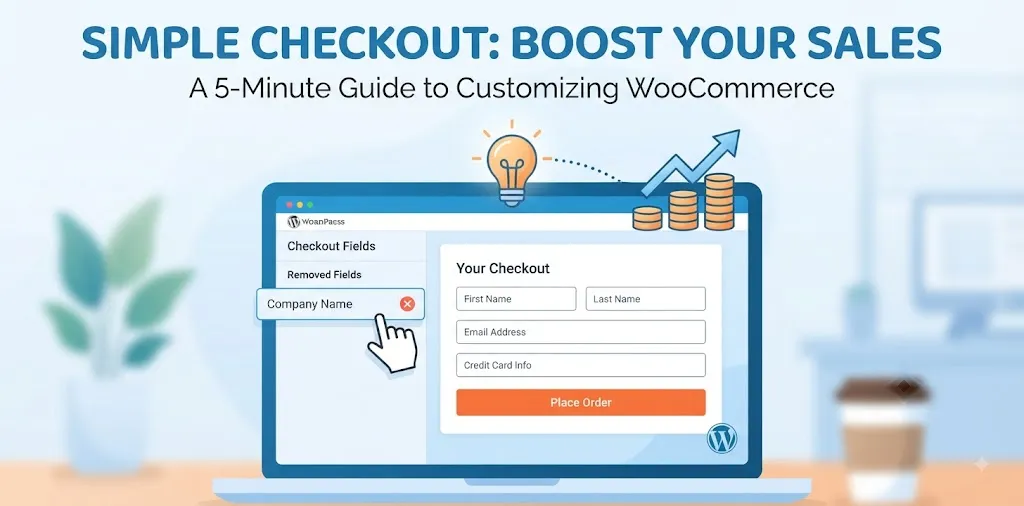
If you sell items on your online store, you need a way to change your checkout form. A checkout field editor helps you take out bad boxes, add new ones, and change the order of what people see. This makes buying things fast.
Why You Need to Change Your Checkout Page
When people go to buy something from your online store, they want it to be quick. If your checkout page has twenty boxes to fill out, they will get tired. They might close the tab and never come back. By changing your checkout fields, you can remove things you do not need, like a fax number or an extra address line.
- Save Time: Shoppers finish buying in seconds instead of minutes.
- Get More Sales: Fewer people leave your site without paying.
- Collect Good Data: Only ask for the details you truly need to ship your items.
Think about a time you tried to buy shoes online. If the store asked for your birthday, your pet’s name, and three phone numbers, you probably got mad and left. When I ran my own online t-shirt shop a few years ago, I noticed half of my buyers were quitting at the payment page. I looked at the form and saw I was asking for way too much stuff. Once I cut the form down to just name, address, and card info, my sales went up by twenty percent in one week.
How to Pick the Right Plugin
There are many tools you can download for your website. You want to pick one that is easy to use and does not slow down your pages. A good tool lets you drag and drop boxes wherever you want them.
- Drag and Drop Builder: Move boxes up and down with your mouse easily.
- Conditional Logic: Show or hide boxes based on what the buyer picks.
- Mobile Friendly: Make sure the form looks great on phones and tablets.
Before you install a new tool, always check when it was last updated. You want a tool that the creator fixes often. A well-kept tool keeps your site safe from hackers. You can read our related guide on how to pick safe plugins for more tips on this.
Step by Step Setup Guide
Setting up your new tool is simple if you follow a clear path. First, go to your website dashboard and click on plugins. Search for a checkout field editor and click install. Once it is active, you will find a new menu in your settings.
- Find the Settings: Go to your store settings and look for the checkout tab.
- Hide Bad Fields: Click the hide button on boxes you do not want to see.
- Add New Fields: Click the add button if you need a special note from the buyer.
- Save Changes: Always click the save button at the bottom of the page.
Let us look at a quick case study from a local toy shop in my town. They sell board games online. At first, their checkout page asked people to pick if they were a company or an individual. Most people got confused by this choice. The shop owner used a checkout editor to delete that box entirely. Just by removing that one confusing choice, their daily completed orders went up by ten percent.
Advanced Tips for Better Checkout Flow
Once you have your basic form looking clean, you can do a few more things to make it even better. You can set up smart rules. For example, if a buyer chooses to pick up their item at your store, the form can hide the shipping address box. They do not need to type their home address if they are coming to get it.
- Smart Rules: Show boxes only when they make sense for that specific buyer.
- Placeholder Text: Put helpful hints inside the boxes so people know what to type.
- Required Marks: Make sure only the most important boxes have a red star next to them.
Keeping your form short and sweet is the best secret to making money online. If you want to learn more about speeding up your whole site, check out our related guide on website speed tips. Take time today to look at your checkout page with fresh eyes. Pretend you are a buyer and see how long it takes you to buy something. If it feels too long, use these steps to fix it right now.
Frequently Asked Questions
Do you still have questions about your checkout form? Here are three quick answers to help you make your online store better today.
What is the best plugin to edit checkout fields?
The best tool is one that is fast, has good reviews, and lets you hide or add boxes with a simple click on your screen.
Will changing my checkout form slow down my site?
No, if you pick a lightweight tool, it will not slow down your site. Always test your page speed after you add new software.
Can I ask buyers for a delivery date?
Yes, you can use your tool to add a new date box so buyers can pick the exact day they want their package.
Conclusion
Making your online store easy to use is the best way to grow your business. When you clean up your checkout page, you remove the roadblocks that stop people from paying you. Shoppers love a fast and simple form. By taking away boring boxes and only asking for what you truly need, you will watch your sales grow day by day.
Here is your final expert tip: always test your checkout form on your smartphone. Many store owners only check their site on a big computer screen. But most buyers use their phones. Go to your site right now on your phone and try to buy your own item. If you have to pinch, zoom, or scroll too much, you need to fix it. Your next step is to log into your website dashboard today, find a checkout editor tool, and delete at least two unneeded boxes from your form right now.