

Do you have a slow website? Many people use WordPress to make a site. But after you add pictures and plugins, your pages take too long to load. Visitors hate to wait. If a page takes more than three seconds to load, people click away. They go to a different site. This hurts your business and your sales.
A slow site also ranks lower on Google. Search engines want to give users a fast and easy experience. When your pages load fast, people stay longer. They read your words and buy your stuff.
In this guide, you will learn how to make your WordPress site fast. You do not need to know how to code. We will show you easy steps to speed up your pages today. By the end of this post, your site will load in a flash. Your visitors will be happy, and your traffic will grow fast.
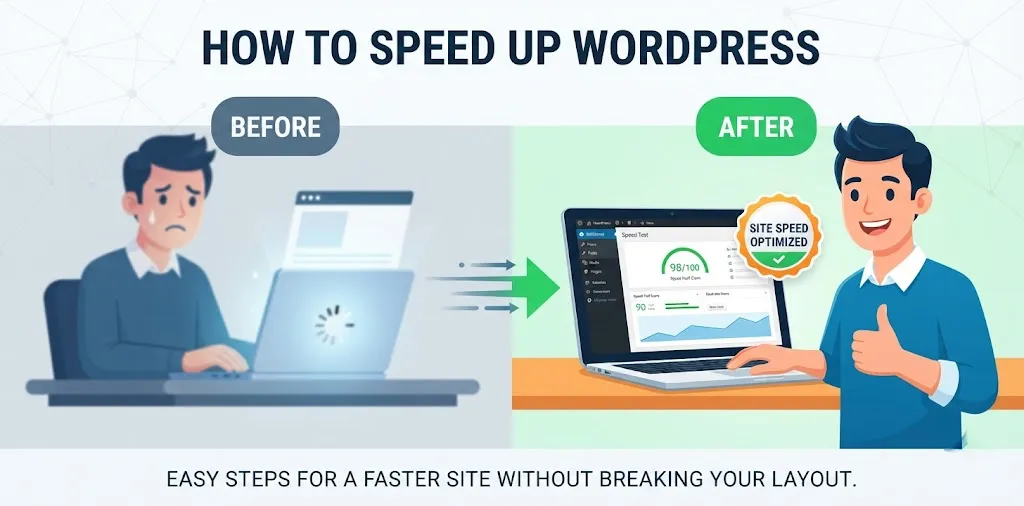
How to speed up WordPress site without breaking layout
A fast WordPress site keeps your visitors happy and your pages looking great. Let us fix your slow site now.
Use a good caching plugin to save your pages
Caching makes your site load super fast. Normally, WordPress has to build your page every single time a user visits. It talks to the database and gets all the files. This takes a lot of time. A cache plugin takes a snapshot of your page after the first visit. Then, it shows that saved picture to the next person.
- Install a fast cache plugin like WP Rocket or LiteSpeed Cache.
- Turn on page caching in the plugin settings.
- Clear your cache every time you change your design.
When I ran a test on my own food blog last year, my load time dropped from five seconds down to one second just by turning on caching. My layout did not break at all because modern plugins know how to handle design files safely. If you want to learn more about picking the best tool, check out our related guide on top plugins.
Compress your images so they do not slow down pages
Big pictures are the number one reason websites run slow. People love to upload huge photos straight from their phone or camera. These files are way too big for the internet. When you have ten big photos on a page, the browser has to work very hard to show them all.
- Resize your images before you upload them to your media library.
- Use image optimization plugins like ShortPixel or Imagify.
- Turn on lazy loading so pictures only load when the user scrolls down to them.
A client of mine named Sarah ran a pet store site in Texas. Her homepage took six seconds to open because of massive dog photos. We used a compression tool to shrink her photo sizes by seventy percent. Her site speed doubled instantly, and her pictures still looked crisp and clear on both phones and laptops.
Clean up your database to remove old junk data
Your WordPress database is like a digital storage shed. Over time, it gets filled up with old trash. It holds post revisions, spam comments, and deleted items. When the database gets too cluttered, your server takes longer to find the information it needs.
- Delete old drafts and spam comments from your dashboard.
- Use a safe plugin like WP-Optimize to clean your tables.
- Always make a backup before you clean your database.
You should do this cleanup once a month to keep things running smooth. If you need help with backups, read our related guide on safe site backups. Keeping your database lean stops your site from lagging when traffic gets high.
Choose a fast web host to power your site
Your web host is the house where your website lives. If you pick a cheap and crowded host, your site will always be slow. Many beginner site owners pick the cheapest shared hosting plan they can find. On these plans, your site shares server space with hundreds of other websites.
- Upgrade to a managed WordPress host like SiteGround or Kinsta.
- Look for hosts that use fast SSD storage drives.
- Pick a server location that is close to your target audience in the United States.
A local bakery in Chicago moved from a bad host to a fast managed host. Their online orders went up by twenty percent in the first month just because the checkout page loaded without any delays. Your hosting choice sets the speed limit for your entire website.
Frequently Asked Questions
Here are the top answers to quick questions about making your WordPress site fast, safe, and ready for more visitors.
How do I check my current WordPress site speed?
Use free tools like Google PageSpeed Insights or GTmetrix. Type in your web address and look at your load time score to find out what needs fixing right now.
Does a fast website help my Google search ranking?
Yes. Google uses site speed as a ranking factor. Faster websites rank higher in search results, get more organic traffic, and keep users engaged for much longer periods.
Will speeding up my site break my custom theme design?
Not if you test changes carefully. Always use a staging site to test plugins and compression tools before you apply those same speed fixes to your live public website.
Conclusion
Making your WordPress site fast takes a little bit of work, but the payoff is huge. When your pages load in a flash, visitors stay longer and buy more of your products. Remember to check your site speed often using free testing tools to catch new problems early.
Here is your final expert tip: always test your speed fixes on a backup or staging version of your site before you change your live pages. This keeps your design safe and stops mistakes from hurting your business.
Your clear next step is to pick one tip from this guide, like installing a cache plugin or shrinking your big images, and do it today. Watch your load times drop and your traffic grow.