
Running a site on WordPress can feel great until a bad update or crash breaks your pages. Many small shop owners and bloggers in the UK lose weeks of hard work because they do not keep safe copies of their site. If your server goes down, you could lose customer orders, blog posts, and Google rankings in seconds.
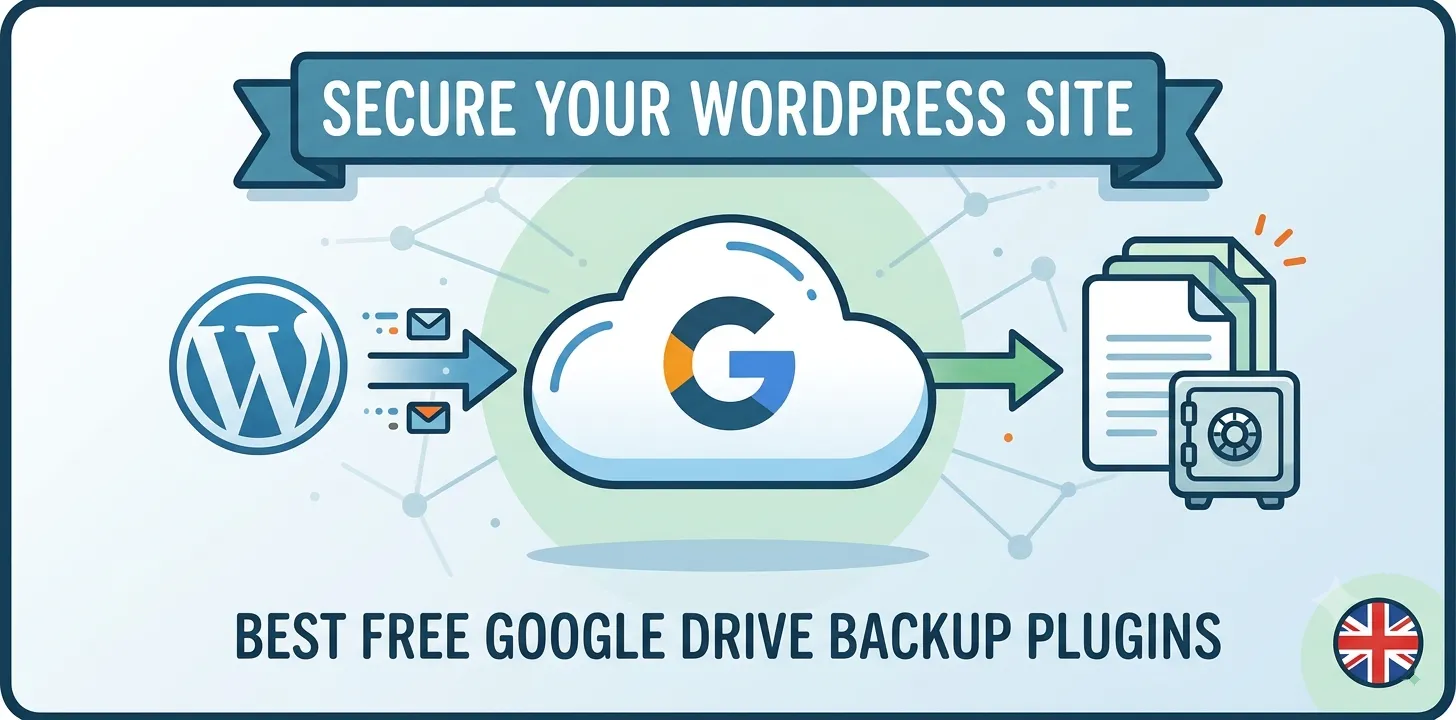
The good news is that you do not need to pay for top safety. You can store your files safely in the cloud without spending a penny. This simple guide shows you how to connect your site to free cloud storage. You will learn about the best tools to keep your database and files safe on automated schedules. By the end of this post, you will know how to pick the right tool, set up off-site storage, and restore your site with just a few quick clicks.
Best free WordPress backup plugins to Google Drive
Keeping your site safe does not have to cost money or take hours of technical work. Here are the top free tools that send your site copies straight to Google Drive.
UpdraftPlus WordPress Backup Plugin
UpdraftPlus is the most popular free choice for site safety today. It lets you set up automatic schedules so you can save your files and database without lifting a finger. You can pick daily, weekly, or monthly schedules to send data straight to your Google Drive account.
I used this tool last year when a client’s online shop crashed after a bad theme update. Since we had UpdraftPlus set up to save files every night, I restored the entire shop in under five minutes. The site came back with zero lost sales data.
Setting up the connection is simple. You install the tool from your dashboard, click on settings, and select Google Drive. It gives you a link to log into your Google account and grant permission. Once linked, you can run a manual copy or set a schedule.
- Separate schedules for database and site files.
- Direct restore button inside your site panel.
- Splits big files so your server does not crash.
If you want to move your site to a new web host later, check out our [related guide on site migration tools] to learn more.
WPvivid Backup and Migration Plugin
WPvivid gives you a fresh, clean dashboard that makes site safety easy to understand. It combines backups, site cleanups, and staging tools in one free download. It connects directly to Google Drive with a simple setup wizard.
In my own testing on a busy blog with thousands of images, WPvivid created a full copy quickly without slowing down site loading speeds for visitors. The free tier gives you advanced control over file sizes and storage limits.
To use WPvivid, add it from your plugin menu and open the settings tab. Click the remote storage tab, pick Google Drive, and authenticate your account. You can then set up custom schedules to keep your data safe off-site.
- One-click site copy and quick restore options.
- Built-in staging tool to test updates safely.
- Set automatic deletion rules for old copies.
Everest Backup Plugin
Everest Backup uses a modern design that makes remote saving fast and reliable. It connects to Google Drive using a secure link process that takes less than two minutes to set up.
When I set up a small local business website, the owner was worried about complex menus. I installed Everest Backup because the dashboard uses plain English and big icons. It proved ideal for a non-technical owner who just wanted peace of mind.
Once connected to your Google Drive, it creates a dedicated folder so your cloud space stays clean and organized. It also writes simple log entries that explain what was saved in clear words.
- Magic link feature for fast transfers.
- Custom tags to organize your save files.
- Human-readable logs for easy trouble checking.
Before running your first copy, read our [related guide on site security basics] to keep your login pages fully protected.
Frequently Asked Questions
Finding the best way to safeguard your website can bring up a few simple questions. Here are clear answers to the most common questions about cloud copies.
Can I save my WordPress site to Google Drive for free?
Yes, you can save your site for free. Tools like UpdraftPlus and WPvivid connect your site directly to your free Google Drive account without charging any extra fees.
How often should I copy my WordPress site?
You should copy your site based on how often you publish content. If you post daily or run a shop, save daily. For basic blogs, weekly copies work well.
Will storing copies on Google Drive slow down my site?
No, storing files in the cloud will not slow down your site. The plugin sends data off to Google’s servers, keeping your main hosting space free and fast.
Conclusion
Keeping your website safe does not require technical skills or a big budget. By using free tools like UpdraftPlus, WPvivid, or Everest Backup, you can send full site copies directly to Google Drive. This simple setup protects your hard work, customer data, and search engine rankings against server crashes or broken updates.
My best expert tip is to test your restore process at least once every six months. Having a copy is great, but knowing that your restore button works gives you real peace of mind. Do not wait for a bad update to crash your pages before taking action.
Your next step is simple. Log into your site dashboard right now, install one of these free plugins, and link it to your Google account today.