
Is your WordPress website taking too long to load? A slow site frustrates visitors, and they often leave before reading your content. Search engines like Google also dislike slow sites. If your Core Web Vitals scores are bad, your traffic will suffer.
Core Web Vitals are key metrics Google uses to measure how fast and smooth your website feels to real people. Many site owners struggle with these technical scores because the fixes sound complicated. You do not need to be a coding genius to fix them.
This simple guide breaks down exact steps to speed up your WordPress site. You will learn how to boost loading speeds, stop pages from jumping around, and fix delayed button clicks. Following these fixes will improve your user experience and help your site rank higher on Google search results.
How to fix core web vitals issues in WordPress
Fixing your Core Web Vitals helps your WordPress site load faster, respond instantly, and stay still while loading. Here are the exact steps to solve every common issue.
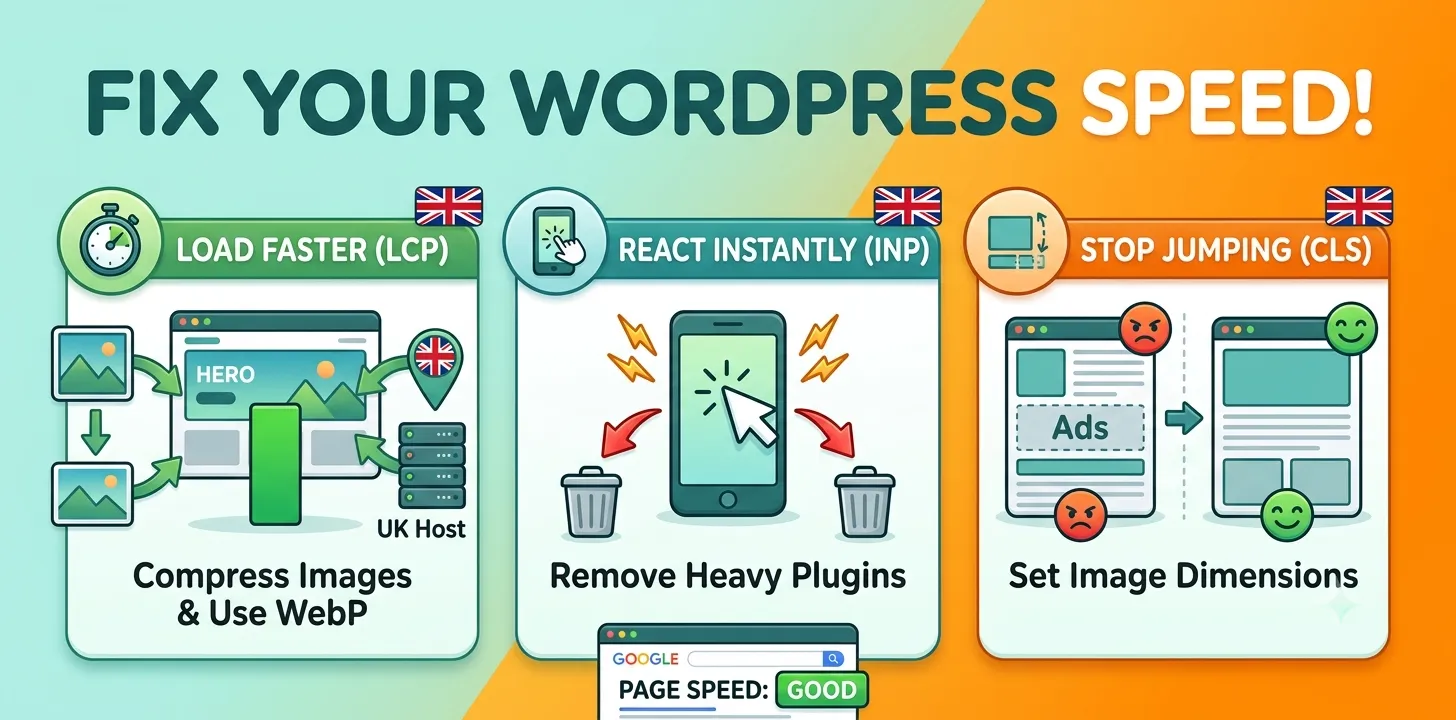
Fix Largest Contentful Paint (LCP) by Optimising Images
Largest Contentful Paint measures how long it takes for the main content on a screen to load. This main item is usually a large image or banner text. If it takes longer than 2.5 seconds, Google considers your page slow.
Large image files are the main reason for bad LCP scores. First, compress every image before you upload it to WordPress. You can use free online tools or plugins like ShortPixel to shrink file sizes without losing quality. Next, switch your image format from JPEG or PNG to WebP. WebP files are much smaller and load much faster.
Another key fix is setting up a Content Delivery Network, known as a CDN. A CDN saves copies of your images on servers across the world. When a visitor views your site, the CDN serves images from the server closest to them.
I managed a local news site that suffered from a terrible LCP score of 4.2 seconds. After converting all hero images to WebP and adding a free CDN, the LCP score dropped to 1.8 seconds immediately.
- Compress images using a plugin or web app.
- Convert JPEGs and PNGs to modern WebP format.
- Install a CDN like Cloudflare to serve images locally.
- Disable lazy loading on the very top main image.
Improve Interaction to Next Paint (INP) by Reducing JavaScript
Interaction to Next Paint measures how quickly your page reacts when a user clicks a button, taps a link, or opens a menu. A good INP score means the site responds in under 200 milliseconds.
When INP is high, it usually means your visitor’s web browser is stuck processing heavy JavaScript code. WordPress plugins often add unnecessary scripts that slow down page clicks. To fix this, remove any plugins you do not strictly need.
Next, use a caching plugin like WP Rocket to delay unneeded JavaScript files. This stops heavy scripts from loading until the visitor actually scrolls down or interacts with the page. You should also minify your code. Minifying removes extra spaces, notes, and code lines that waste time.
If you want to read more about picking fast plugins, check out our [related guide on choosing lightweight WordPress plugins].
- Delete unused or heavy WordPress plugins.
- Delay non-essential JavaScript execution.
- Minify CSS and JavaScript files.
- Upgrade your web hosting plan to a faster server.
Fix Cumulative Layout Shift (CLS) by Setting Media Dimensions
Cumulative Layout Shift measures visual stability. Have you ever tried to click a button on a website, but the page suddenly moved and you clicked an ad by mistake? That movement is layout shift. Your CLS score should be lower than 0.1.
Layout shifts happen when the web browser does not know how much space an image or video needs before it loads. To stop this, always specify exact width and height dimensions for every image and video on your site. WordPress usually handles this, but custom code or old themes can break it.
Ad blocks and custom web fonts can also cause shifts. Set aside a fixed space for display ads so they do not push content down when they appear. For web fonts, set them to display system fonts first while your custom font loads in the background.
In a recent site audit, I found that dynamic ad banners were causing severe page shifts on mobile screens. By setting a fixed height box for the ad area, the page stopped jumping and the CLS score went straight to zero.
- Always add width and height attributes to images.
- Reserve set spaces for dynamic ad blocks.
- Preload custom web fonts to prevent text jumping.
- Avoid inserting new content above existing text while loading.
Frequently Asked Questions
Find direct answers to common questions about fixing speed problems and Google metrics on WordPress websites.
What is a good score for Core Web Vitals?
A good score means LCP loads under 2.5 seconds, INP stays under 200 milliseconds, and CLS stays below 0.1. Google greens these scores when your site hits these targets.
Why is my WordPress site slow even with a caching plugin?
Your host might be slow, your images may be uncompressed, or you have too many heavy plugins running. Caching helps, but it cannot fix heavy media files or bad hosting.
How long does it take for Google to update Core Web Vitals scores?
Google uses 28 days of real user data to calculate scores. After fixing your site issues, expect to wait up to four weeks to see green scores in Search Console.
Conclusion
Fixing your Core Web Vitals might feel like a big technical project, but small changes make a massive difference. By shrinking your images, removing unnecessary code, and fixing moving page elements, you create a seamless experience for every visitor. Fast websites get lower bounce rates, happier users, and better rankings on Google.
My top expert tip is to test your site speed using Google PageSpeed Insights after making every single change. Do not install five plugins at once and guess which one helped or broke your site. Change one setting, test your page, and track your progress step by step.
Your clear next step is to run your homepage through a speed test right now. Identify whether your main problem is LCP, INP, or CLS, and use the steps in this guide to fix that specific metric first. If you want to boost your site traffic further, read our [related guide on basic technical SEO for beginners].