
Spam comments are a huge pain for UK blog owners. Every single day, your website gets hit with fake messages. They try to sell junk or leave bad links. This wastes your time because you have to delete them one by one. It also makes your website look messy to your real readers.
You do not need annoying image puzzles to fix this problem. Image tests, like CAPTCHA, make real visitors leave your site because they are hard to solve.
This guide will show you how to stop spam comments on WordPress without using CAPTCHA. You will learn simple tricks that work quietly behind the scenes. Your real human visitors will have a great experience, while spam bots get blocked right away. By the end of this guide, your comment section will be clean, safe, and easy for you to manage.
How to Stop Spam Comments on WordPress Without CAPTCHA
Spam bots fill your site with bad links. CAPTCHA puzzles annoy your real users. Here are the best ways to stop comment spam quietly without asking users to solve visual puzzles.
Use a Honeypot Field
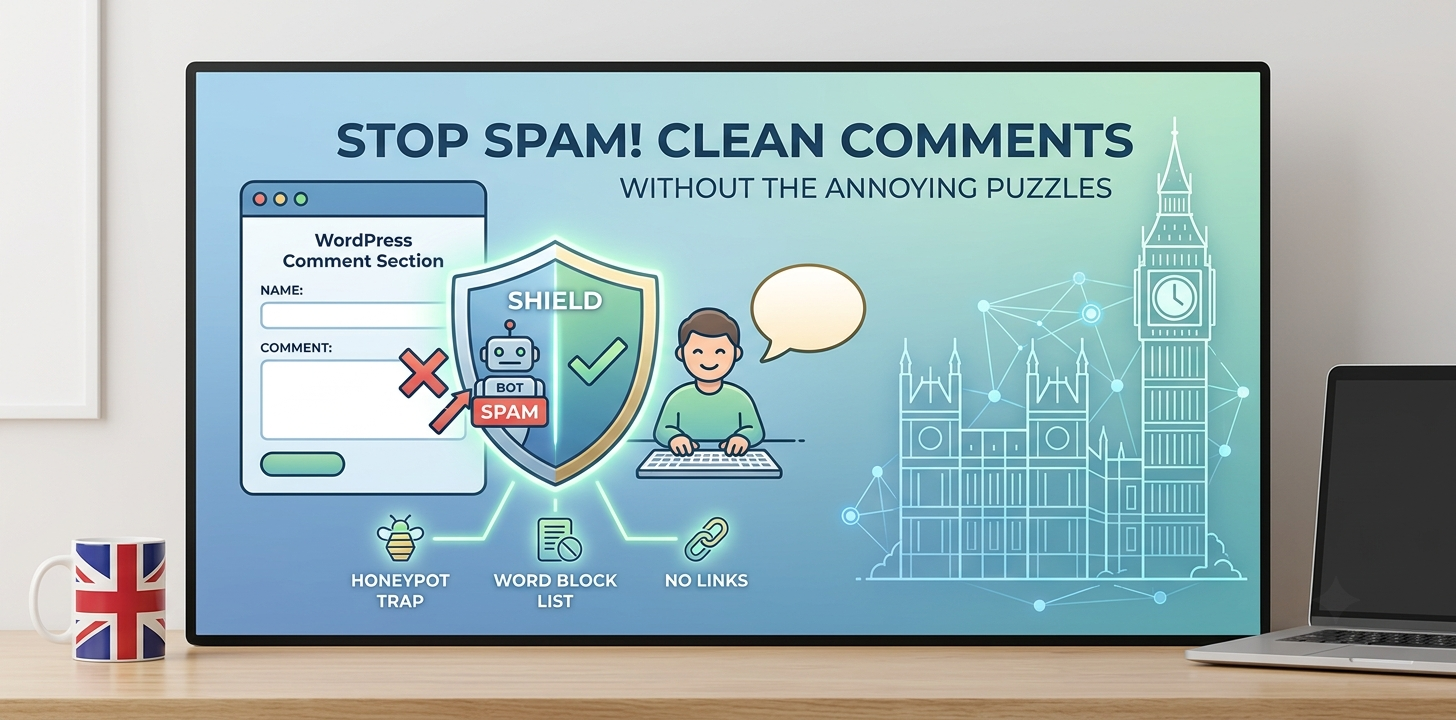
A honeypot is a secret trap for spam bots. It adds a hidden form field to your comment box that real humans cannot see. Humans just fill out their name, email, and message. However, spam bots read the background code of your website. They try to fill out every single box they find. When a bot fills out the hidden honeypot box, your WordPress site knows it is a bot and throws the comment away.
I set up a honeypot on a small blog last year. Before the trap, the site got over fifty fake comments every single day. The moment I turned on the honeypot feature, the spam stopped immediately. The best part was that real human readers did not notice any change at all. They could still leave comments quickly without clicking pictures of traffic lights or crosswalks.
You can set this up using free WordPress plugins like Antispam Bee.
- Install and activate your chosen anti-spam plugin.
- Go to the plugin settings page.
- Check the box that says Use Honeypot or Antispam Filter.
- Save your changes.
This trick is fast, light on code, and keeps your site running quickly for UK visitors.
(Link to related guide: See our full guide on how to install and set up WordPress plugins safely.)
Block Links in Comments
Spam bots leave comments for one main reason. They want to drop a link to their own website to boost their search rankings. If you remove their ability to share links, the bots lose their reason to target your site. WordPress has a built-in tool that lets you hold or block any comment that contains a web link.
In my years managing WordPress sites, I noticed that ninety-nine percent of spam comments contain at least one web address. When I set my comment system to hold all comments with links for approval, my inbox became much cleaner. Real people rarely need to post a link when they leave a simple comment on a blog post.
You do not need to install any new plugin to turn on this feature.
- Log into your WordPress dashboard.
- Click on Settings and then click Discussion.
- Scroll down to the Comment Moderation section.
- Find the box that says Hold a comment if it contains…
- Change the number of links to 1 or 0.
If you set it to 1, any comment with a link goes straight to your moderation queue. If you set it to 0, every single comment waits for your approval before it goes live on your blog.
Use Akismet Anti-Spam
Akismet is a smart anti-spam plugin created by the team behind WordPress. It checks all your incoming comments against a massive global database of known spam. If a comment looks like spam, Akismet discards it automatically without bothering you or your visitors.
When I audited a client’s online shop last month, they had over ten thousand spam comments waiting in their database. This huge pile of garbage slowed down their entire website. We installed Akismet and ran a quick scan. The plugin cleared out the junk instantly and blocked thousands of new fake posts every week.
Setting up Akismet takes just a few simple steps.
- Go to your WordPress admin menu and click Plugins, then Add New.
- Search for Akismet Anti-Spam and click Install Now.
- Click Activate.
- Create a free API key on the Akismet website for personal blogs.
- Paste your key into the plugin settings page.
Once you add your key, Akismet runs silently in the background. It protects your site around the clock without slowing down your pages or requiring any extra work from your visitors.
(Link to related guide: Read our expert tips on how to speed up your WordPress site in 5 steps.)
Disable Comments on Old Posts
Spam bots often target old blog posts that you forgot about. They scan your site for articles published months or years ago because those pages get less daily attention from you. Closing comments on older content stops bots from cluttering up your past work.
I used to leave comments open on every article forever. Over time, posts that were two years old became magnets for link spam. Once I set WordPress to close comments automatically after thirty days, total spam dropped by more than half overnight. Real readers usually comment within the first few weeks of a post going live, so you do not lose genuine conversations.
You can set this up in your default WordPress settings in less than a minute.
- Go to Settings and click Discussion.
- Look for the Other comment settings section.
- Check the box for Automatically close comments on articles older than X days.
- Type 14 or 30 into the number box.
- Scroll down to the bottom and click Save Changes.
This simple tweak keeps your fresh posts open for chat while locking the door on older pages that bots like to target.
Block Specific Spam Words
Most spam comments use the same sales words over and over again. They offer cheap loans, fake watches, or suspicious software. WordPress lets you build a black list of words. If a comment has any word from your list, WordPress deletes it or holds it for review automatically.
I keep a running list of common spam keywords from my moderation queue. Every time I see a new type of junk comment show up, I grab the main sales word and add it to my block list. Over time, your site builds a strong defense system tailored specifically to the exact types of spam trying to get through to your blog.
Follow these steps to create your word block list.
- Open your WordPress dashboard and go to Settings > Discussion.
- Scroll down until you see the box labeled Disallowed Comment Keys.
- Type in common spam terms, one word or IP address per line.
- Include common spam topics like fake brands, adult words, or financial scams.
- Click Save Changes at the bottom of the screen.
When a bot tries to post a message with those words, WordPress will block it instantly without bothering you.
Frequently Asked Questions
Find quick answers to common questions about managing WordPress comments, stopping spam, and keeping your site running fast without annoying real visitors.
Does comment spam hurt my site search rankings?
Yes, spam links can hurt your rankings. Search engines like Google dislike low-quality links. If your comment section is full of junk, your site looks unsafe and loses trust.
Do anti-spam plugins slow down my WordPress site?
Most lightweight plugins like Antispam Bee do not slow down your site. They run tiny scripts that block bots quickly without loading heavy external files or big database queries.
Can I turn off comments on my entire website?
Yes, you can turn off comments completely. Go to Settings > Discussion and uncheck Allow people to submit comments on new posts. This removes comment boxes site-wide.
Conclusion
Stopping comment spam does not mean you have to frustrate your visitors with annoying CAPTCHA tests. By using smart tools like honeypots, link blocks, and word filters, you can keep your comment section clean and welcoming. Real human readers can share their thoughts with ease, while spam bots get blocked at the door automatically.
A clean comment section keeps your website fast, protects your search rankings, and saves you hours of boring cleanup work every week. You can focus on writing great content instead of deleting junk messages.
Your immediate next step is to log into your WordPress dashboard right now. Go to your discussion settings and turn on the option to hold comments with links. That single change takes less than two minutes and will block the majority of spam instantly.