

Seeing a broken website is scary. You open your site, and a big message says there is a major problem. Your site is down, and visitors cannot see your content. This means you could lose traffic, sales, and trust. Fixing it seems hard if you do not know code.
Do not worry. You can fix this issue fast without hiring an expensive expert. This guide shows you simple steps to get your site back online today. I have fixed hundreds of sites over the last ten years. I will walk you through each step in plain English.
By the end of this page, you will know why this issue happens. You will also learn how to fix it yourself step by step. You will get your site running smoothly again, protect your content, and keep your online business safe. Let us get your site back up right now.
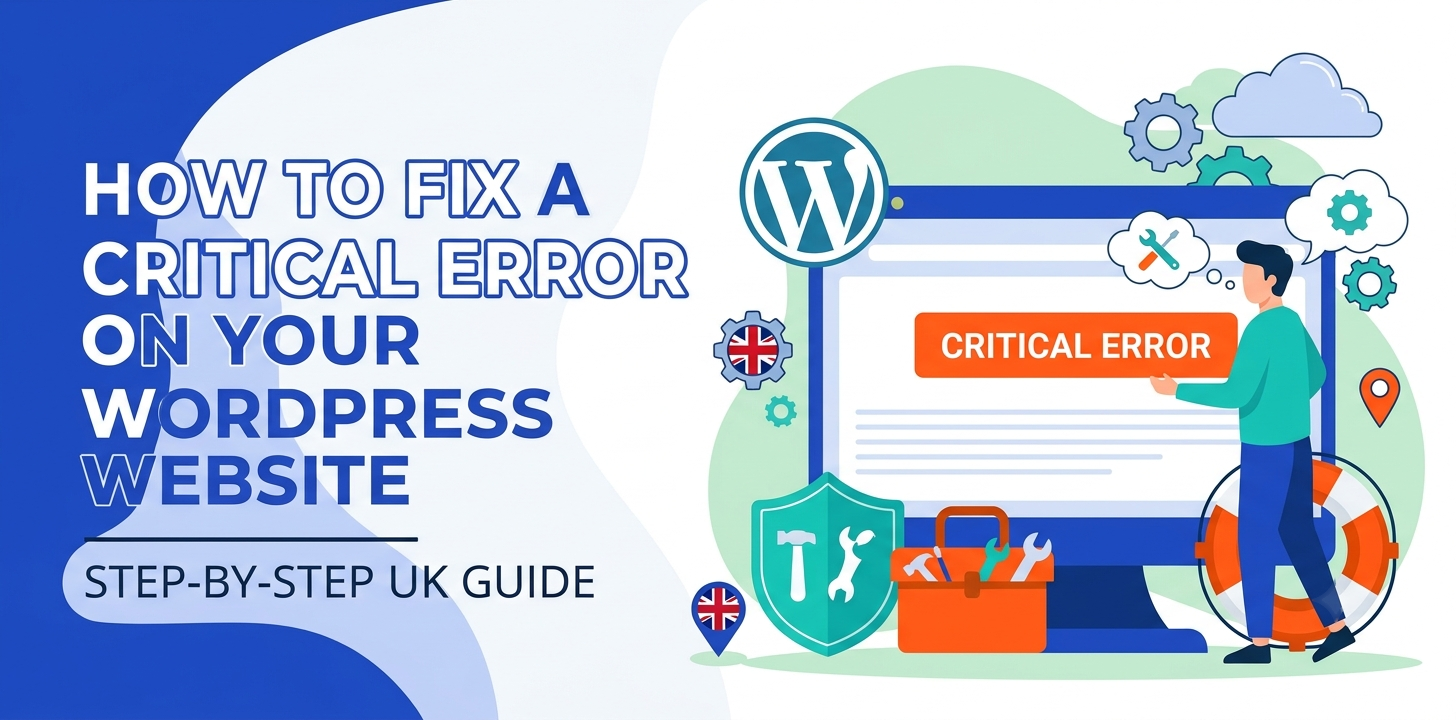
How to fix critical error on your WordPress website
A major site crash usually happens due to bad code, broken plugins, or memory issues. Follow these simple steps to find the problem and bring your site back online fast.
Check your email for a recovery link
When your site breaks, your system automatically sends an email to the admin account. This email tells you which plugin or theme caused the crash. It also contains a special link called a recovery mode link. Clicking this link lets you log into your dashboard safely, even when the public site is down.
I remember helping a small UK retail shop last year. The owner panicked because her store went dark during a sale. We checked her inbox, found the email, and logged in via the link within two minutes. From there, we turned off the broken plugin and brought the store back immediately. Always check your main inbox and your spam folder first before you try anything else.
If you find the email, click the link and enter your dashboard. You will see a big message telling you which tool failed. Click disable next to that tool. Your site will work again right away. If you do not see the email, do not worry. You can still fix the site using the next step below.
Turn on debug mode to see the problem
If you do not have the email, you need to make the site show you the exact error. Normally, your site hides technical details from visitors. You can turn on a tool called debug mode to display the hidden message on your screen.
To do this, log into your web hosting account. Open your file manager tool and look for a file named wp-config.php in your main folder. Open this file and look for a line that mentions WP_DEBUG. Change the word false to true. Save the file and refresh your broken website.
Now, instead of a white screen, you will see text explaining the fault. It will show a file path. Look at the words in that path. You will usually see the name of a specific plugin or your theme. Write down that name. This tells you exactly what you need to fix or remove in the next step.
(If you need help logging into your server, check our related guide on how to use FTP for beginners.)
Disable all plugins using FTP or file manager
Most site crashes happen right after you update a plugin. If a bad update breaks your site, you must turn off your plugins manually. You can do this easily through your hosting file manager or a free tool called FileZilla.
Open your site files and go to the folder named wp-content. Inside, you will see a folder called plugins. Rename this folder to plugins-old. Renaming the folder stops all your plugins from loading at once. Now, try opening your website in a new tab.
In almost every case, your site will load again. This proves a plugin caused the issue. Next, change the folder name back to plugins. Go into your admin dashboard and turn plugins back on one by one. Refresh your site after each one. When the site breaks again, you found the culprit. Delete that specific plugin and look for a safer alternative to keep your site safe.
Switch to a default theme
Sometimes the code inside your design layout gets corrupted. If turning off your plugins does not solve the issue, your active design layout is likely the problem. You can force your site to load a standard layout instead.
Go back to your file manager inside the wp-content folder. Open the folder named themes. Locate the folder for your current active theme. Rename that folder by adding -old to the end of its name. For example, rename my-theme to my-theme-old.
When your site cannot find your custom layout, it automatically switches back to a standard default option, like Twenty Twenty-Four. Check your website in your browser. If it works, your main layout file has broken code. You should re-download a fresh copy of your layout from the creator or contact their support team for a fix.
Raise your server PHP memory limit
Your website needs memory to process actions, just like a computer. If your site runs out of memory, it stops working and crashes. This often happens on cheap shared hosting when you add big tools or heavy tools like online stores.
You can fix this by giving your site access to more memory. Open your wp-config.php file again in your file manager. Add a new line of text near the top that gives your site 256 megabytes of memory space. Save the file and re-load your site.
If you are not comfortable editing files, ask your hosting provider support team to raise your PHP memory limit for you. Most good UK web hosts will do this for free in just a few minutes. Increasing your memory stops random crashes and makes your pages load much faster for your visitors.
Frequently Asked Questions
Find quick answers to the most common questions about site crashes. These simple tips will help you fix errors fast and keep your site safe.
Why does my site say there has been a critical error?
This message means PHP code stopped working. It is usually caused by a bad plugin update, a broken theme file, or running out of memory on your web server.
Will I lose my content when my site crashes?
No, your content is safe. Pages, posts, and customer data sit in your database. The crash only stops your site from displaying that data to visitors on the front end.
How do I stop this problem from happening again?
Always test updates on a copy of your site first. Use good hosting, delete unused tools, and keep automatic backups so you can restore your site fast if it breaks.
Conclusion
Fixing a major site crash feels hard, but the process is straightforward once you know the steps. Most problems come down to a bad plugin, an outdated design layout, or a low memory limit. By turning on debug mode and turning off bad tools, you can bring your site back online quickly without paying for outside help.
A great site manager always stays prepared. My top expert tip is to set up automated daily backups right now. Tools like UpdraftPlus can save full copies of your files to cloud storage for free. If an update ever breaks your site again, you can restore a working copy with one single click.
Your next step is simple. Log into your site control panel today and check your PHP memory settings. Make sure your memory limit is set to at least 256M so your site stays fast, stable, and secure.